How to Access BE International BE4U Web Application?
To access the BE International BE4U web app for members and Independent Business Owner (IBO), click here.

The above is a picture of me (Mommy Lynn) and my husband (Daddy Will) at Osaka, Japan.
Who is Mommy Lin (Loh Chia Lin)?
Mommy Lynn or Loh Chia Lin is an active distributor and Independent Business Owner (IBO) with BE International since December 2017. My ranking with BE International is Crown Council Ambassador (CCA).
We did did quite well in the business. Our trip to Osaka was fully sponsored by BE International when we qualified for the BE Lifestyle Travel (BELT) campaign.
BE Lifestyle Travel campaign is a sales campaign held twice a year where the qualifier can get to travel overseas free of charge!
This is one of the many benefits building the BE business.
How To Get Access To BE4U app?
When we are building our BE business, one of the tools we use is the BE4U app.
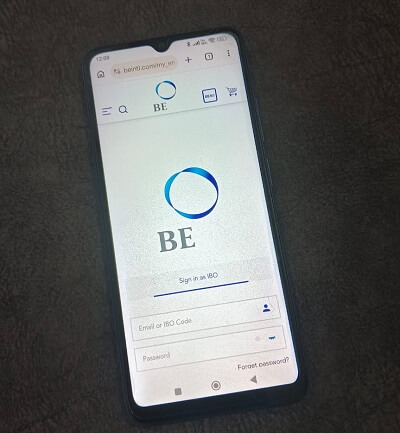
Above is a picture of the BE4U app lock in page.
The BE4U application is a custom app developed in-house by BE International.
The BE4U app is what we use to sponsor new member, order product, check the status of our order and also monitor our network growth.
The following are the step by step process on how to log into the BE4U app on your smartphone.
1) Register as BE member
Before you can gain access into the BE4U app, you need to register as a member of BE International. In order to register as a member, you will need a BE International active sponsor.
The role of a sponsor is to provide customer service to you. If you have any question in regards to the product from BE, your sponsor will be your main contact person.
Your sponsor will be able to share with you the BE member registration link via WhatsApp.
2) EKYC and pay the member registration fee
When you clicked on the registration link, you would have to enter your identity card number and perform the Electronic Know Your Customer (EKYC) process.
Why must you scan your identity card to register a BE membership account?
The reasons you have to scan your identity card for the EKYC process are:
- Safe and swift
- Enhanced security and efficiency
- Convenience
- User-friendly interface
- Regulatory compliance
- Environmentally friendly
After your information has been verified by EKYC, you are required to enter your personal information which are not listed on your identity card such as:
- Email address
- Contact number
- Bank details
- Spouse info if you are married
- Log in password
3) Receiving Welcome email
After you’ve scanned your identity card and performed the EKYC process, you need to pay the BE member registration fee.
The BE member registration fee for Malaysian is RM60.00 which is valid for 1 year.
You can pay the member registration fee using your credit card, debit card or bank transfer.
After you’ve paid the fee, you will receive a Welcome email from BE.
Inside the email, you will find your IBO Code and the password to access the BE4U app.
For your first time login, the system will ask you to enter your email or your BE member ID code.
The password to access the app is the password that you’ve entered after the EKYC verification.
Next, you will need to create a e-pin to access the e-wallet function of your BE membership.
How To Order Aulora Pants Women Using the BE4U App?
Here’s how you can order the Aulora Pants women design using the BE4U app.
- Log into your BE International member’s dashboard
- Click the Continue Shopping link
- Select Wellness Wear > Women > Pants
- Select either the Aulora Pants Women Black colour or the Aulora Pants Women Soft Beige
- Select the Aulora Pants size that you want. Add to cart.
- Click the Shopping Cart icon at the top to go to the Payment Page.
How To Order Belixz Shiruto from Japan Using the BE4U App?
Here’s how you can order Belixz Shiruto using the BE4U app.
- Log into your BE International member’s dashboard
- Click the Continue Shopping link
- Select Promotions > Belixz Promo or Belixz category
- Select the Belixz Shiruto single box or the multiple box packages. Add to cart.
- Click the Shopping Cart icon at the top to go to the Payment Page.
If you have any question, please click the link below to contact me through WhatsApp and I will be able to assist you.